
How to Play Meccha Chameleon on Mac (Step-by-Step)
How to play Meccha Chameleon on Mac: a step-by-step guide to install and run the game on a MacBook with Whisky or CrossOver, plus cloud gaming and Steam Deck.
Last updated: 2026-07-22
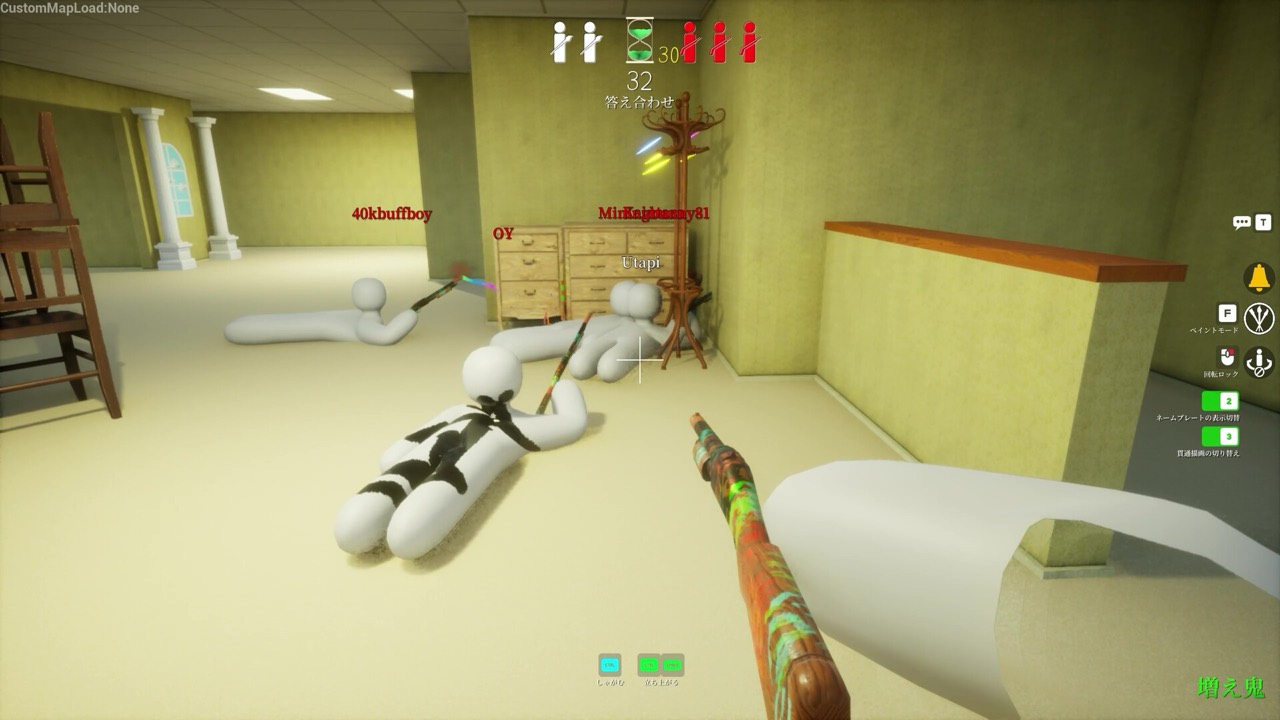
Want to know how to play Meccha Chameleon on Mac? Here is the honest, step-by-step answer. There is no native Mac version of the game — the Steam edition supports Windows rather than macOS. But you can still get Meccha Chameleon running on a Mac or MacBook with a Windows compatibility layer, cloud gaming, or a Steam Deck. This guide walks each route in order, from the cheapest to the most reliable, so you can pick the one that fits your setup.
If you only want the quick yes/no and a broad options overview, read can you play Meccha Chameleon on Mac first. This page is the hands-on install guide. Note the game is often searched as "mecha chameleon" with a single c — same title, same steps.
Before you start: what you need
To play Meccha Chameleon on Mac through a compatibility layer, you need:
- A Mac running a recent macOS (Apple Silicon M1/M2/M3 or a newer Intel Mac).
- A Steam account and enough disk space for Steam plus the game.
- A stable internet connection — Meccha Chameleon is an online multiplayer game, so matchmaking needs to connect.
- Patience: this is unofficial and unsupported. It may work smoothly, stutter, or fail to launch. Do it at your own risk.
One warning before anything else: any website offering a "Meccha Chameleon Mac download" or a "macOS installer" is fake. For a PC copy, use the official Steam store page; the separate Switch 2 edition does not provide a native Mac installer. Everything else is a clone or a scam.
Method 1: Play Meccha Chameleon on Mac with Whisky (free)
Whisky is a free, open-source Mac app built on Wine and Apple's Game Porting Toolkit. It is the cheapest way to try Meccha Chameleon on a MacBook.
- Install Whisky. Download it from the official Whisky project site and drag it into your Applications folder.
- Create a new "bottle." Open Whisky and add a bottle — this is the isolated Windows environment your game will live in. Let it set up the default Windows version.
- Install Steam inside the bottle. Download the Windows Steam installer (SteamSetup.exe), then in Whisky choose Run and point it at that installer. Complete the normal Steam setup.
- Sign in and buy or install the game. Launch Steam through Whisky, log into your account, and install Meccha Chameleon from your library (buy it first on the Steam page if you don't own it yet).
- Launch and test. Start the game from the Steam library inside Whisky. Give it a minute on the first launch while shaders compile.
If it will not connect online, that is the most common issue on Mac. Work through the online and connection guide — verify the game files, check your firewall, and confirm the Steam status page. For crashes and launch failures, the not working / fixes guide covers the usual culprits.
Method 2: Play Meccha Chameleon on Mac with CrossOver (paid)
CrossOver is a polished, paid version of the same Wine technology, with a free trial. Many Mac gamers find it more reliable than Whisky because it ships tested configurations and support.
- Install CrossOver from CodeWeavers and start the free trial.
- Install a Steam "bottle." CrossOver has a one-click Steam installer in its software list — use it to set up Steam automatically.
- Log in and install Meccha Chameleon from your Steam library, exactly as you would on Windows.
- Create a shortcut and launch. CrossOver can pin the game to your Mac dock so you skip Steam next time.
CrossOver's advantage is smoother setup and a support team; the trade-off is the price after the trial ends. Performance still is not guaranteed — online matchmaking and the fast painting moments are where a compatibility layer struggles most.
Method 3: Cloud gaming (no install)
Cloud gaming streams Meccha Chameleon from a remote Windows machine to your Mac, so your MacBook only needs a browser and a fast connection. If a cloud service in your region carries the game or lets you stream your own Steam library, this is the lowest-effort route — nothing to install and no compatibility layer to fight.
The catch is input lag. Meccha Chameleon rewards quick color matching and fast seeking, and even small delays hurt those moments. You also need a stable, high-speed connection. Check whether your preferred service actually supports the game before you subscribe.
Method 4: Buy a Steam Deck (most reliable owned option)
If you want a real, owned way to play without keeping a Windows desktop around, a Steam Deck runs Meccha Chameleon rated Playable (not Verified), at roughly 30–40 FPS. For a Mac household that is the tidiest answer. The smaller screen and trackpad make precise color matching harder than a mouse, but casual matches work fine. See the platforms overview and the system requirements for the full picture.
What about Boot Camp?
Boot Camp let older Intel Macs dual-boot into Windows and run the game natively. But Apple Silicon Macs (M1 and later) cannot use Boot Camp at all, so this route is closed on any modern MacBook. That is exactly why the Whisky, CrossOver, and cloud options get so much attention from Mac owners.
Which method should you pick?
- Just want to try it for free? Start with Whisky.
- Want the smoothest unofficial setup and don't mind paying? Use CrossOver.
- Don't want to install anything? Try cloud gaming, if your region supports it.
- Want it to just work, reliably? A Steam Deck or a real Windows PC is the safe bet.
None of the Mac workarounds fully replaces a Windows machine, but Whisky and CrossOver do get many players into the game. Once you are in, learn the basics in how to play, plan your disguise with the paint guide, and match your camouflage with the free palette matcher on the homepage. Still deciding? The FAQ and the Mac options overview round out the picture.